Color Palettes
PixelRoot32 uses a palette-based color system that allows you to easily change the visual style of your game. This guide covers built-in palettes, dual palette mode, and custom palettes.
Built-in Palettes
PixelRoot32 includes several predefined palettes inspired by classic gaming systems:
Available Palettes
| Palette | Description | Preview |
|---|---|---|
PR32 (Default) | PixelRoot32 standard palette |  |
NES | Nintendo Entertainment System style | 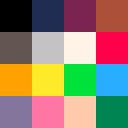 |
GB | GameBoy style (Gray/Green) | 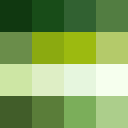 |
GBC | GameBoy Color style | 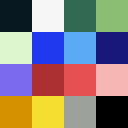 |
PICO8 | PICO-8 fantasy console style | 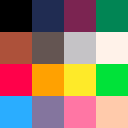 |
#include <graphics/PaletteDefs.h>

namespace pixelroot32::graphics {

enum class PaletteType {
    PR32,    // PixelRoot32 default palette
    NES,     // Nintendo Entertainment System
    GB,      // GameBoy (4 shades of green)
    GBC,     // GameBoy Color
    PICO8    // PICO-8 palette
};
Using Built-in Palettes
#include <graphics/PaletteDefs.h>

// Set palette globally (legacy mode)
pixelroot32::graphics::setPalette(pixelroot32::graphics::PaletteType::NES);

// All sprites will now use NES colors
renderer.drawSprite(MY_SPRITE, 100, 100, pixelroot32::graphics::Color::White);
Palette Characteristics
PR32 (Default)
- Modern, balanced colors
- Good contrast
- Suitable for most games
NES
- Classic 8-bit console colors
- Limited color range
- Nostalgic feel
GB (GameBoy)
- 4 shades of green
- Monochrome aesthetic
- Classic handheld look
GBC (GameBoy Color)
- Expanded color range
- More vibrant than GB
- Classic portable console
PICO8
- PICO-8 fantasy console palette
- 16 carefully chosen colors
- Popular for retro games
Legacy Mode (Single Global Palette)
In legacy mode, one palette is used for all sprites:
void MyScene::init() override {
    // Set global palette
    pixelroot32::graphics::setPalette(pixelroot32::graphics::PaletteType::NES);

    // All sprites use NES colors
    // This is the simplest mode
}
When to use:
- Simple games
- Consistent visual style
- Maximum compatibility
Dual Palette Mode
Dual palette mode allows different palettes for background elements and sprites, creating visual contrast.
Enabling Dual Palette Mode
#include <graphics/PaletteDefs.h>

void MyScene::init() override {
    // Enable dual palette mode
    pixelroot32::graphics::enableDualPaletteMode();

    // Set background palette
    pixelroot32::graphics::setBackgroundPalette(
        pixelroot32::graphics::PaletteType::GB
    );

    // Set sprite palette
    pixelroot32::graphics::setSpritePalette(
        pixelroot32::graphics::PaletteType::NES
    );
}
How It Works
- Background palette: Used for tilemaps, primitives, and background sprites
- Sprite palette: Used for game objects, characters, and foreground sprites
- Automatic context: The renderer automatically selects the correct palette based on what you're drawing
Example: Contrasting Styles
void MyScene::init() override {
    pixelroot32::graphics::enableDualPaletteMode();

    // Dark, muted background (GameBoy green)
    pixelroot32::graphics::setBackgroundPalette(
        pixelroot32::graphics::PaletteType::GB
    );

    // Bright, colorful sprites (NES)
    pixelroot32::graphics::setSpritePalette(
        pixelroot32::graphics::PaletteType::NES
    );

    // Background uses GB palette
    renderer.drawTileMap(backgroundTileMap, 0, 0,
        pixelroot32::graphics::Color::White);

    // Sprites use NES palette
    renderer.drawSprite(playerSprite, 100, 100,
        pixelroot32::graphics::Color::White);
}
When to Use Dual Palette Mode
- Visual contrast: Make sprites stand out from background
- Artistic style: Different palettes for different layers
- Retro aesthetics: Classic console color separation
- Performance: No performance impact, just visual variety
Custom Palettes
Create your own color palettes for unique visual styles.
Creating a Custom Palette
#include <graphics/PaletteDefs.h>
#include <graphics/Color.h>

// Define custom colors (RGB565 format)
static const pixelroot32::graphics::Color CUSTOM_PALETTE[] = {
    pixelroot32::graphics::Color::Black,      // 0: Transparent/background
    pixelroot32::graphics::Color::DarkBlue,   // 1
    pixelroot32::graphics::Color::Blue,       // 2
    pixelroot32::graphics::Color::LightBlue, // 3
    pixelroot32::graphics::Color::Cyan,      // 4
    pixelroot32::graphics::Color::White,      // 5
    // ... more colors
};

// Set custom palette
pixelroot32::graphics::setCustomPalette(
    CUSTOM_PALETTE,
    sizeof(CUSTOM_PALETTE) / sizeof(pixelroot32::graphics::Color)
);
RGB565 Color Format
Colors in PixelRoot32 use RGB565 format (16-bit):
// RGB565: 5 bits red, 6 bits green, 5 bits blue
// Format: RRRRR GGGGGG BBBBB

// Create custom RGB565 color
uint16_t myColor = (31 << 11) | (63 << 5) | 31; // White
uint16_t myColor = (0 << 11) | (0 << 5) | 0;    // Black
uint16_t myColor = (31 << 11) | (0 << 5) | 0;   // Red

// Or use Color constants
pixelroot32::graphics::Color::Red
pixelroot32::graphics::Color::Green
pixelroot32::graphics::Color::Blue
Helper Function for Custom Colors
// Create RGB565 color from RGB values (0-255)
uint16_t rgb565(uint8_t r, uint8_t g, uint8_t b) {
    return ((r >> 3) << 11) | ((g >> 2) << 5) | (b >> 3);
}

// Usage
static const pixelroot32::graphics::Color MY_PALETTE[] = {
    rgb565(0, 0, 0),        // Black
    rgb565(255, 0, 0),      // Red
    rgb565(0, 255, 0),      // Green
    rgb565(0, 0, 255),      // Blue
    rgb565(255, 255, 255),  // White
};
Complete Custom Palette Example
class CustomPaletteScene : public pixelroot32::core::Scene {
public:
    void init() override {
        // Define custom palette (ocean theme)
        static const pixelroot32::graphics::Color OCEAN_PALETTE[] = {
            pixelroot32::graphics::Color::Black,      // 0: Deep ocean
            pixelroot32::graphics::Color::Navy,        // 1: Dark blue
            pixelroot32::graphics::Color::Blue,       // 2: Medium blue
            pixelroot32::graphics::Color::Cyan,       // 3: Light blue
            pixelroot32::graphics::Color::LightBlue, // 4: Surface
            pixelroot32::graphics::Color::White,      // 5: Foam
        };

        // Set custom palette
        pixelroot32::graphics::setCustomPalette(
            OCEAN_PALETTE,
            sizeof(OCEAN_PALETTE) / sizeof(pixelroot32::graphics::Color)
        );

        // Now all sprites use the ocean palette
    }
};
Color Constants
PixelRoot32 provides predefined color constants:
namespace pixelroot32::graphics {
    Color::Black
    Color::White
    Color::Red
    Color::Green
    Color::Blue
    Color::Yellow
    Color::Cyan
    Color::Magenta
    Color::DarkGray
    Color::LightGray
    Color::Navy
    Color::DarkGreen
    Color::DarkRed
    Color::Brown
    Color::Purple
    Color::Orange
    Color::Pink
    Color::Gold
    Color::LightBlue
    Color::LightGreen
    Color::LightRed
    Color::Transparent
}
Best Practices
Palette Selection
- Match game style: Choose palette that fits your game's theme
- Test on hardware: Colors may look different on ESP32 display
- Consider contrast: Ensure sprites are visible against background
- Consistency: Stick with one palette per scene (or use dual mode)
Dual Palette Mode
- Use sparingly: Not all games need dual palettes
- Test combinations: Some palette combinations work better than others
- Clear separation: Use for clear visual distinction between layers
- Performance: No performance cost, use freely
Custom Palettes
- Limit colors: Keep palette size reasonable (8-16 colors)
- Plan ahead: Design palette before creating sprites
- Test thoroughly: Verify colors work well together
- Document: Comment your palette choices
Common Patterns
Palette Switching
class GameScene : public pixelroot32::core::Scene {
public:
    void init() override {
        // Set initial palette
        pixelroot32::graphics::setPalette(
            pixelroot32::graphics::PaletteType::NES
        );
    }

    void changeToNightMode() {
        // Switch to darker palette
        pixelroot32::graphics::setPalette(
            pixelroot32::graphics::PaletteType::GB
        );
    }

    void changeToDayMode() {
        // Switch to brighter palette
        pixelroot32::graphics::setPalette(
            pixelroot32::graphics::PaletteType::PICO8
        );
    }
};
Theme-Based Palettes
namespace GamePalettes {
    // Forest theme
    static const pixelroot32::graphics::Color FOREST[] = {
        Color::Black,
        Color::DarkGreen,
        Color::Green,
        Color::LightGreen,
        Color::Brown,
        Color::Yellow
    };

    // Desert theme
    static const pixelroot32::graphics::Color DESERT[] = {
        Color::Black,
        Color::Brown,
        Color::Yellow,
        Color::Gold,
        Color::Orange,
        Color::White
    };

    // Ocean theme
    static const pixelroot32::graphics::Color OCEAN[] = {
        Color::Black,
        Color::Navy,
        Color::Blue,
        Color::Cyan,
        Color::LightBlue,
        Color::White
    };
}
Troubleshooting
Colors Not Changing
- Verify
setPalette()is called before drawing - Check palette is set in
init(), notupdate() - Ensure dual palette mode is enabled if using separate palettes
- Verify Color constants are from correct namespace
Colors Look Wrong on Hardware
- ESP32 displays may render colors differently
- Test on actual hardware, not just PC
- Adjust palette colors if needed
- Consider display calibration
Dual Palette Not Working
- Ensure
enableDualPaletteMode()is called first - Verify both palettes are set
- Check that you're drawing in correct context
- Review renderer documentation
Next Steps
Now that you understand palettes, learn about:
- Cameras and Scrolling - Create scrolling levels
- Tilemaps - Build levels with tiles
- Particles and Effects - Add visual effects
See also: